
The television industry is in the middle of a quiet but meaningful transformation. For a long time, the conversation felt almost stuck. LED TVs were all about brightness and OLED was the obvious choice for perfect blacks. It was usually framed as a tradeoff, and depending on who you asked, one side always felt like it came with a compromise.
Now, though, RGB LED TVs have stepped into that gap, and they are changing the rules in a way that feels less like a gimmick and more like a genuine shift.
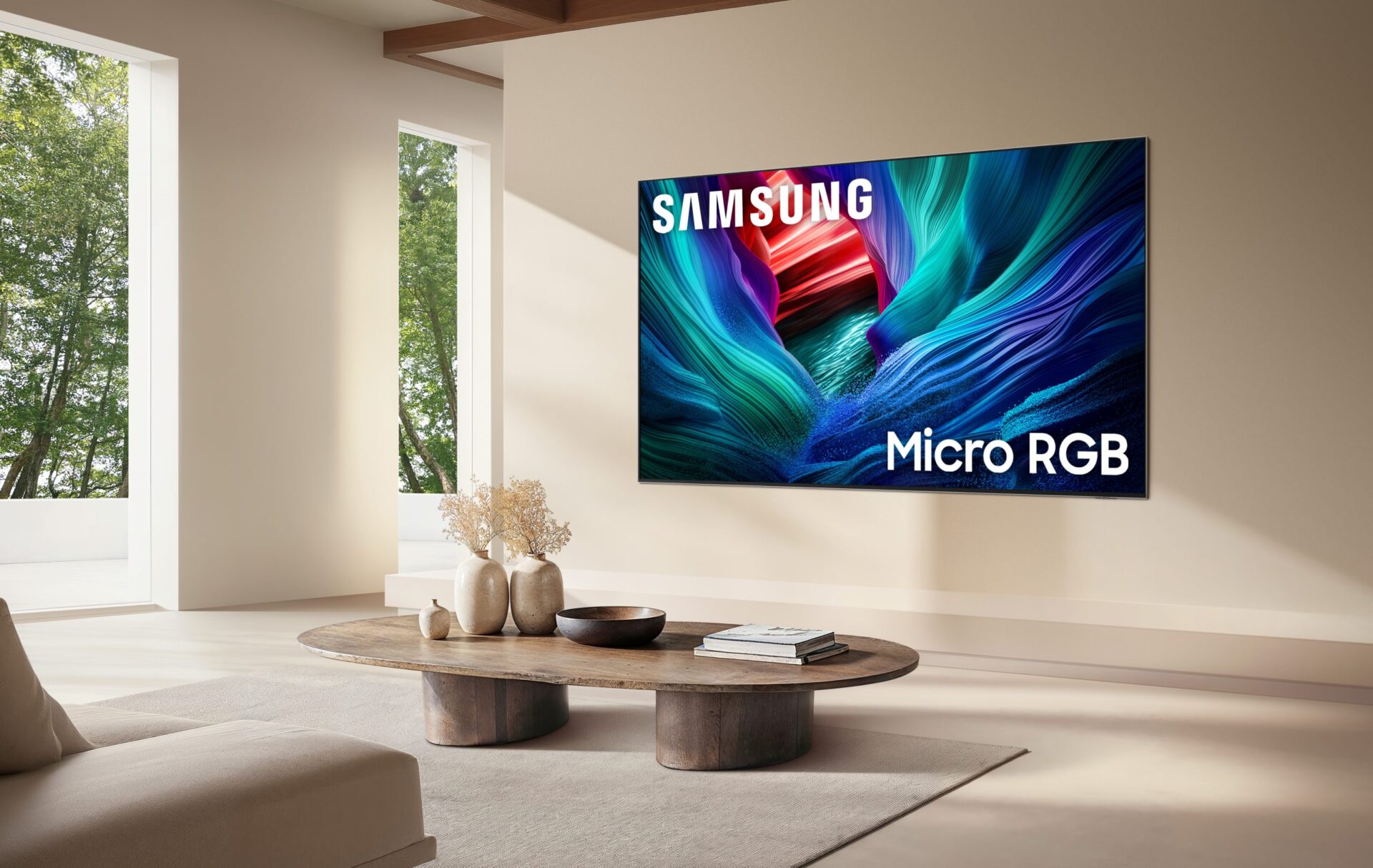
Unlike traditional LED TVs that rely on blue or white backlights paired with color filters, RGB LED or RGB-MiniLED technology uses individual red, green, and blue diodes. That difference matters more than it sounds. By producing color directly at the light source, these displays can achieve a noticeably wider color gamut and avoid the washed-out look that filters sometimes introduce. The result, when everything is set up properly, is an image that feels richer, more precise, and honestly a bit more alive.
Whether you just picked up a flagship model from Samsung, Sony, or Hisense, or you are still weighing an upgrade, this guide walks through how to get the most out of RGB LED technology without overcomplicating the process.
Step 1 Optimize Physical Placement
One of the first things people notice about RGB LED TVs is just how bright they can get. Many of these panels comfortably exceed 5,000 nits, which is impressive, but brightness only works in your favor if the TV is placed thoughtfully.
Start by managing ambient light. These displays handle bright rooms far better than older TVs, but direct sunlight is still an issue. If sunlight hits the panel head-on, glare will cut into contrast and color depth. Simple window treatments or a slight shift in placement can make a bigger difference than most people expect.
Next, pay attention to eye-level alignment. For optimal viewing angle, the center of the screen should sit roughly at eye level when you are seated. Mounting a TV too high is common, and with RGB LED panels, off-angle viewing can subtly reduce color consistency, even if the image still looks sharp.
Finally, do not overlook ventilation. RGB-MiniLED systems pack an extremely dense array of diodes, and that density generates heat. Leave at least four inches of clearance around the vents. It might feel excessive, but proper airflow helps maintain brightness stability over time.
Step 2 Calibrate for Cinematic Color
Color accuracy is really the heart of the RGB LED experience. Out of the box, most TVs arrive in Vivid mode, which is designed to grab attention on a showroom floor rather than reflect real-world content. It looks punchy at first, but after a while, it can feel tiring or just slightly off.
Begin by switching to Cinema, Movie, or Filmmaker Mode. These presets dial back artificial sharpening, motion smoothing, and exaggerated colors. They aim for a more neutral presentation that aligns closely with how movies and shows are actually mastered.
Backlight adjustment comes next. In a dark room, setting the backlight somewhere between 30 and 50 percent usually provides plenty of brightness without washing out shadow detail. In brighter rooms, pushing it closer to 80 or even 100 percent is reasonable, and this is where RGB LED really shows its strength.
Set the color temperature to Warm. At first glance, it can seem slightly yellow, which throws some people off. Give it a little time. This setting aligns with industry standards for accurate white balance, and once your eyes adjust, skin tones and natural lighting tend to look far more convincing.
Lastly, enable local dimming and set it to High. This allows clusters of RGB LEDs to dim independently, deepening blacks and enhancing contrast in a way that starts to resemble OLED performance, at least in many scenes.
Step 3 Configure for Next Generation Gaming
For gaming, RGB LED TVs feel especially well suited. They deliver extreme brightness and contrast without the long-term burn-in concerns that can accompany OLED panels.
Activate Game Mode as your first step. This reduces input lag by bypassing unnecessary processing, making controller input feel more immediate. The difference might not seem dramatic at first, but once you get used to it, going back is hard.
Use an HDMI 2.1 cable and enable Variable Refresh Rate and Auto Low Latency Mode. VRR smooths motion and eliminates screen tearing, while ALLM ensures the TV automatically switches to its lowest latency mode when a console is detected. It is one of those features that quietly works in the background, but you definitely notice when it is missing.
If your console supports it, run the HGiG calibration. This setting allows the TV and console to coordinate HDR tone mapping, preventing clipped highlights and preserving fine detail in bright scenes. It takes a few minutes to set up, but the improvement in HDR games is worth the effort.
Entity Definitions for SEO
RGB LED
A lighting component that integrates red, green, and blue chips into a single unit, creating millions of colors through additive mixing rather than filters.
Mini-LED
A backlighting technology that uses thousands of extremely small LEDs, allowing for more precise control over brightness and contrast compared to traditional LED-LCD displays.
BT.2020
A wide color space standard used in Ultra HD content that RGB LED TVs are designed to cover more effectively than earlier display technologies.
Nits
A unit of measurement for luminance, or brightness. Higher nit values indicate a brighter display, which is especially important for HDR performance.
Frequently Asked Questions (FAQ)
Q: Is RGB LED better than OLED?
A: It depends on your room. OLED still offers “perfect” blacks for dark-room viewing. However, RGB LED TVs are significantly brighter, more durable (no burn-in risk), and offer a wider color range for HDR content.
Q: Does an RGB LED TV use more power?
A: Generally, yes. Driving thousands of individual red, green, and blue diodes at high brightness requires more energy than a standard edge-lit LED TV. However, they are often more efficient than older Plasma or large-format OLEDs.
Q: Why do I see a “halo” around white text on my screen?
A: This is called Blooming. It happens when the light from bright pixels leaks into dark areas. You can minimize this by ensuring your Local Dimming is set to “High” and by slightly reducing the TV’s brightness.
Q: Do I need special cables for an RGB LED TV?
A: To get the full benefit of 4K resolution at 120Hz (especially for gaming), you should use an Ultra High Speed HDMI (2.1) cable.